White-label each provider’s storefront and emails — brand colour, logo, footer, the exact wording of every subscriber email, which emails send, and (optionally) your own sending domain.
Every provider on the platform can look and sound like their own brand, not
Kurnl’s. This is all set per-provider from Providers → (pick a provider) →
Settings — no code, no redeploy.
These settings are operator-managed. Open a provider from the Providers
list; each section below has its own Save button.
The header colour, logo and footer line applied to every subscriber-facing
email for that provider.
1
Set the brand basics
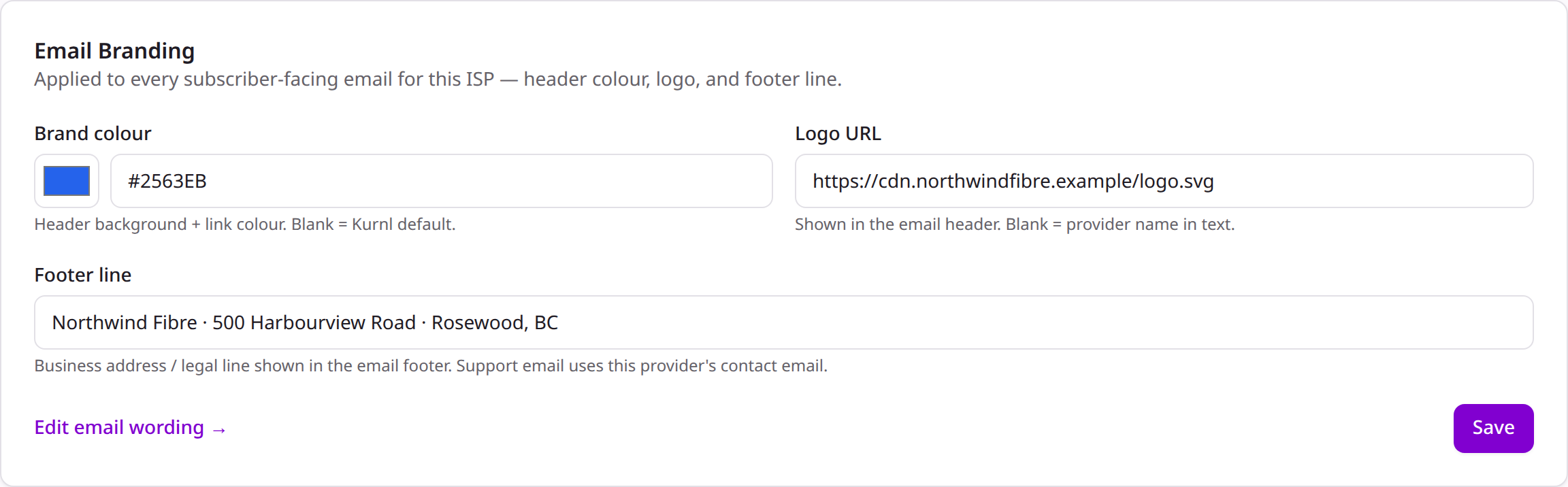
In the Email Branding card, pick the brand colour (used for the email
header and links), paste a logo URL, and add a footer line (business
address / legal text). Leave a field blank to fall back to the Kurnl default.
Per-provider email branding
The support address in the footer uses the provider’s contact email, so
replies reach the right place automatically.
You can rewrite the subject and the greeting / opening / closing of any
subscriber email — welcome, invoice, payment received/failed/reminder, plan
change, cancellation, outage & restoration, and more. The layout and the
data in the middle (amounts, dates, invoice numbers) stay intact.
1
Open the editor
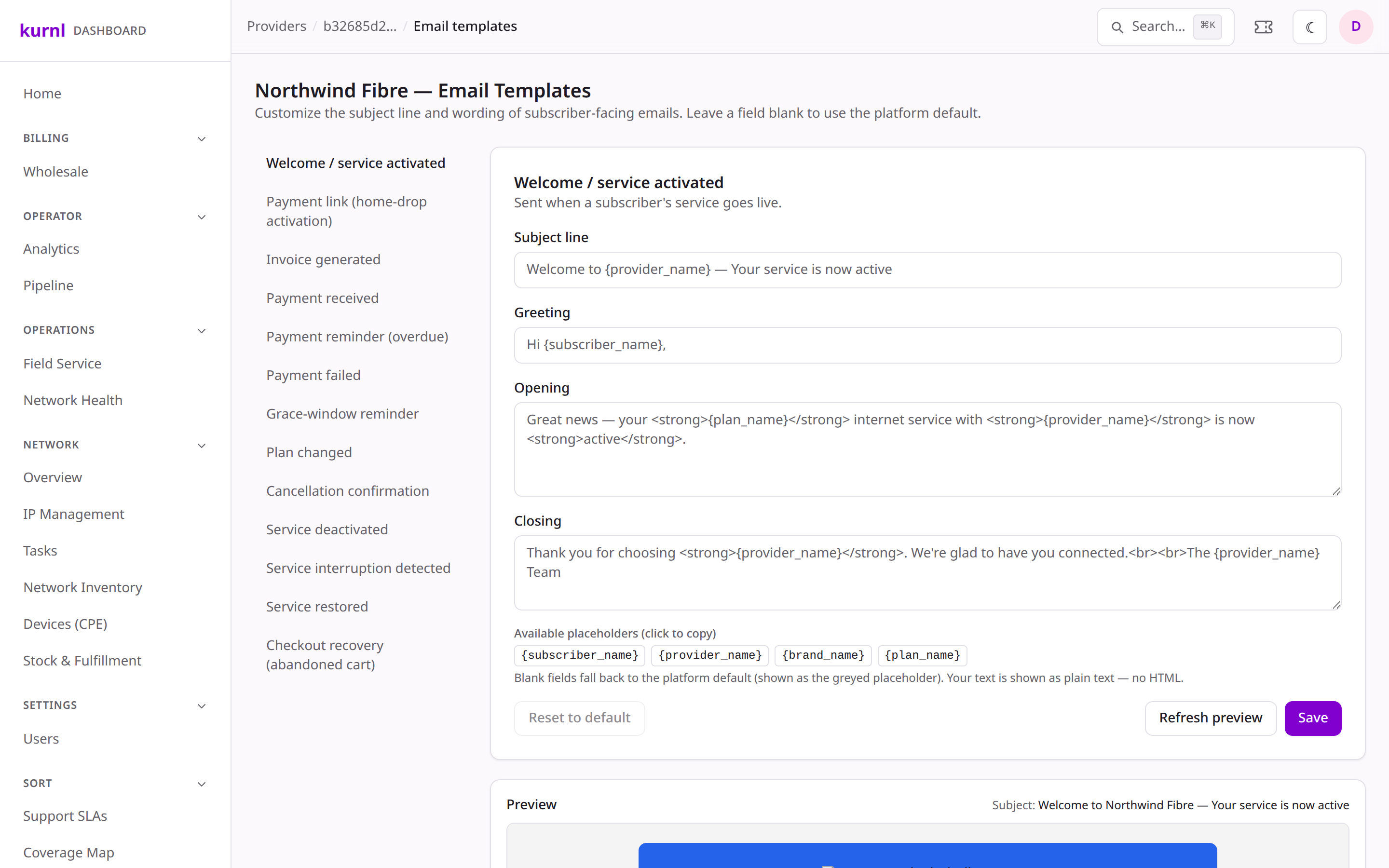
From the Email Branding card, click Edit email wording. Pick a template
on the left.
2
Rewrite and preview
Edit any of the four fields — a blank field keeps the platform default (shown
as the greyed placeholder). Use the (like {subscriber_name}
or {plan_name}) — click one to copy it. The live preview renders with
the provider’s branding as you type.
Editing copy with a live, branded preview
3
Save or reset
Save applies it to future sends. Reset to default removes your
override and restores the platform wording.
Your text is sent as plain text — placeholders are substituted, but HTML is
escaped, so a template can never be broken from the editor.
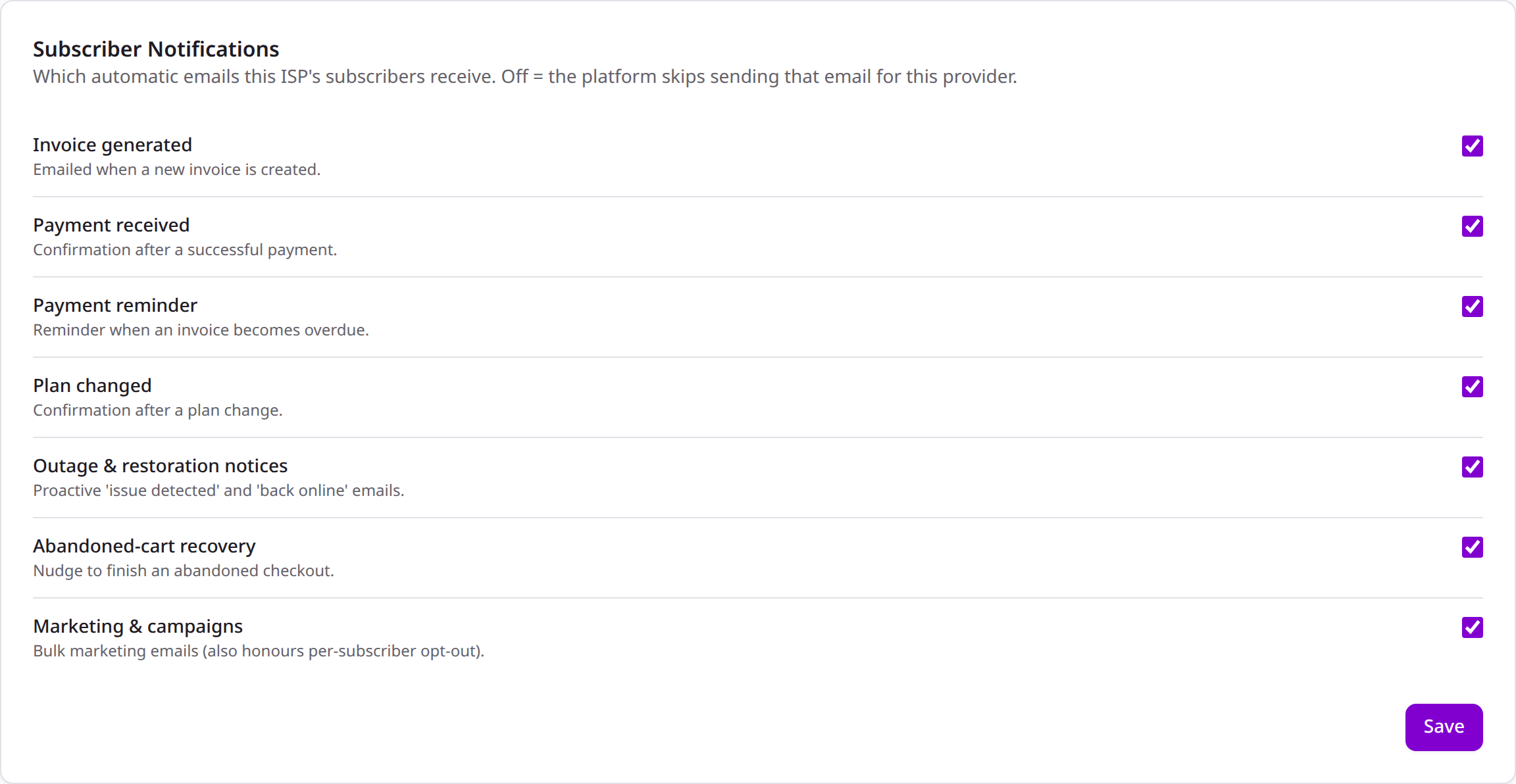
Turn individual automatic emails on or off for a provider.
1
Open Customer Notifications
In the Customer Notifications card, toggle any of: invoice generated,
payment received, payment reminder, plan changed, outage & restoration,
abandoned-cart recovery, and marketing. Off means the platform skips that
email for this provider.
By default emails send from Kurnl’s domain under the provider’s display name.
A provider can instead send from their own domain (e.g. billing@acme-fibre.ca).
1
Add the domain
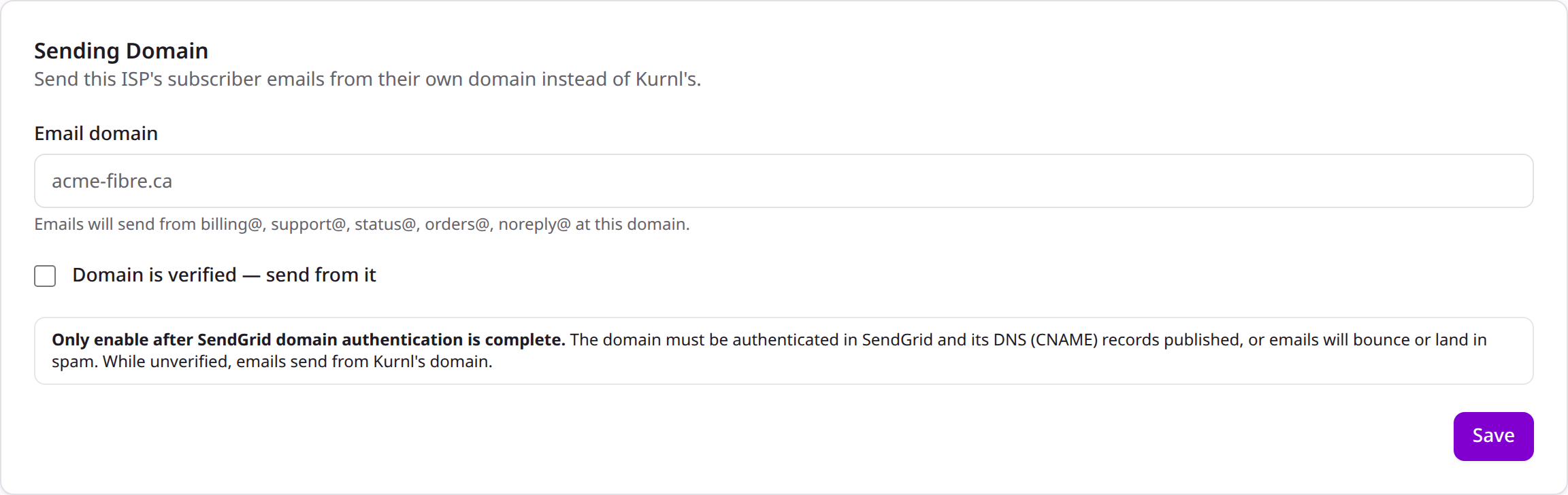
In the Sending Domain card, enter the provider’s email domain.
Per-provider sending domain
2
Verify, then enable
First complete SendGrid domain authentication for that domain and publish
the DNS (CNAME) records SendGrid gives you. Only then tick Domain is
verified — send from it. Until it’s verified, emails safely fall back to
Kurnl’s domain.
Don’t enable “verified” before the DNS records are live, or emails from that
domain will bounce or land in spam.