When you’re helping someone, open their self-service portal exactly as they see
it — no “can you read me what’s on your screen?”.
1
Open self-service as the subscriber
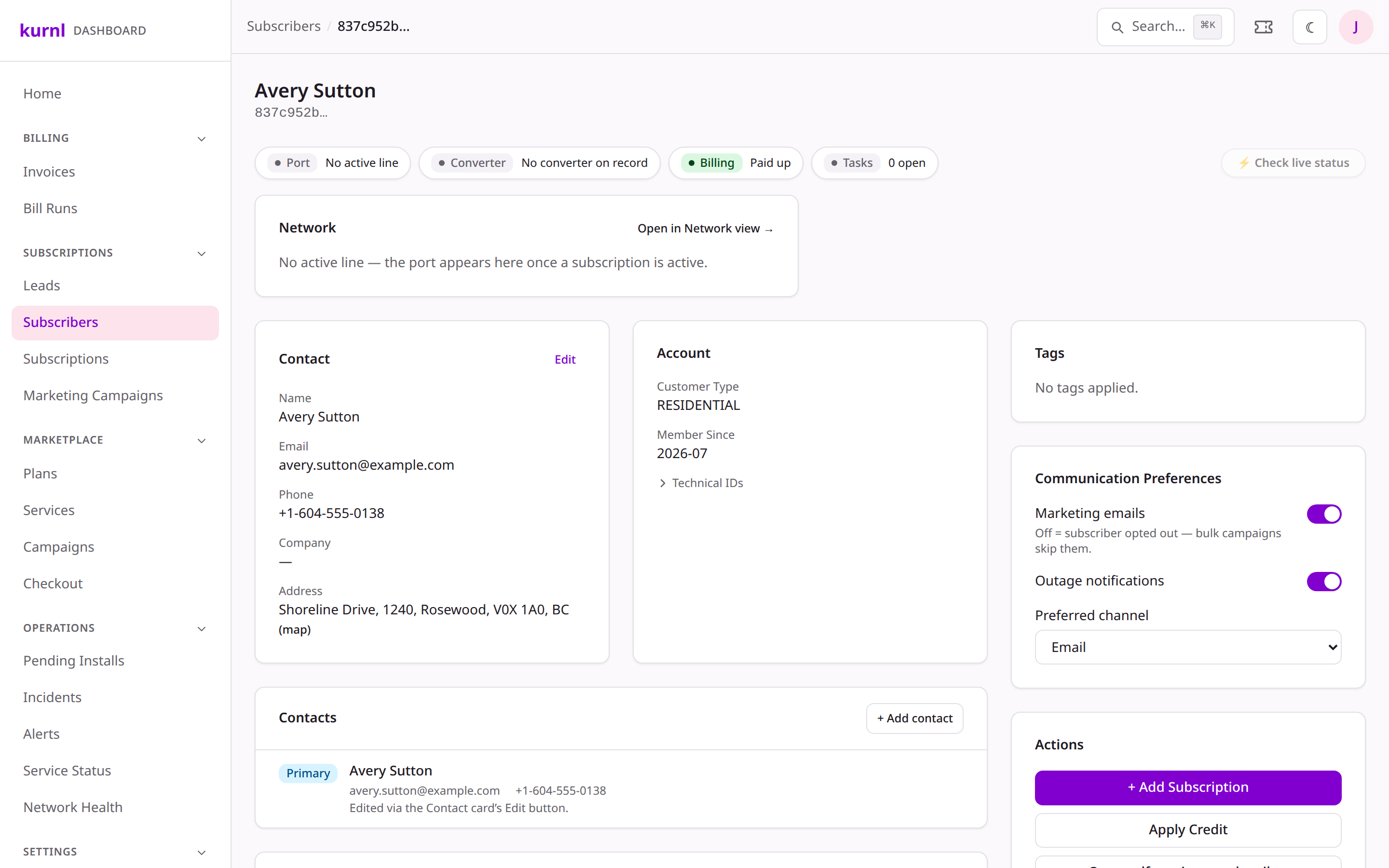
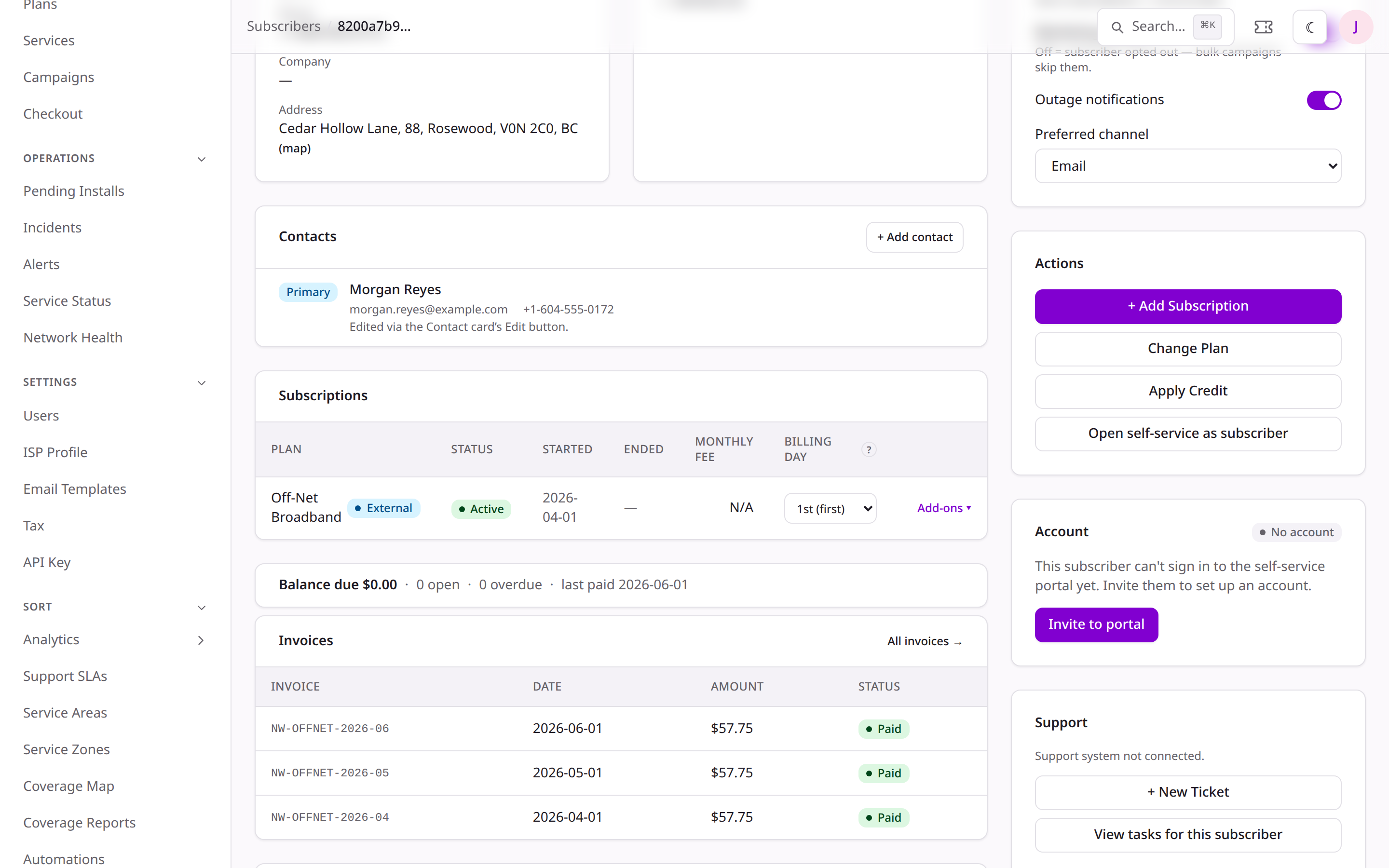
From the cockpit, click Sign in as customer and confirm (the
impersonation is audited). Their portal opens in a new tab with a clear
banner showing whose account you’re viewing.
Launch the subscriber's portal from the cockpit
2
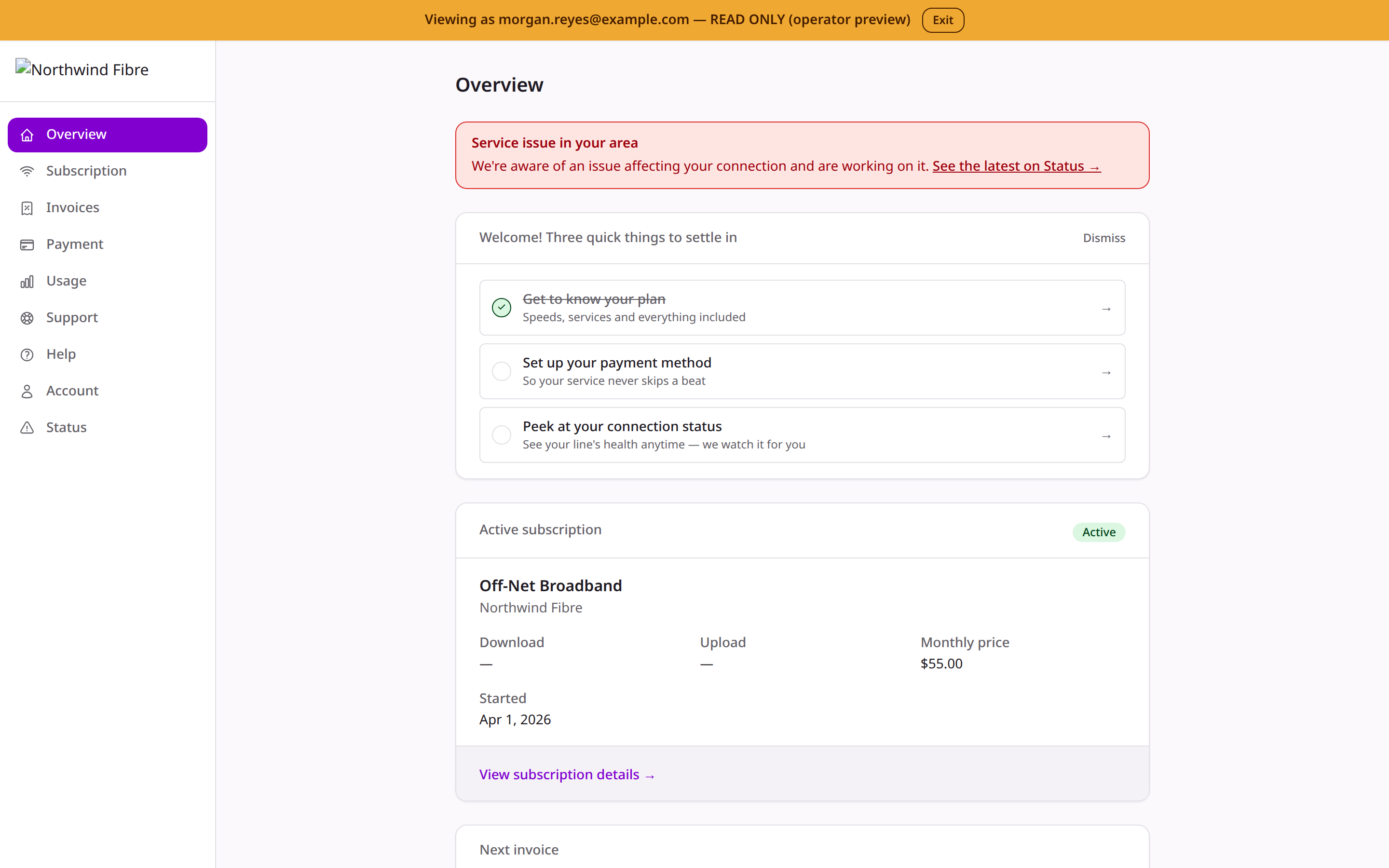
Read-only preview
For a live subscriber the session is read-only — you see their plan,
invoices, usage and tickets, but can’t change anything on their behalf. A
persistent banner makes the mode unmistakable; Exit drops you back.
The portal in read-only operator preview
Impersonation is sp_admin-only and limited to your own subscribers. In a
sandbox the session is fully interactive so you can safely
rehearse a subscriber’s flow; against production data it stays read-only.
From the subscription, choose Change plan. Upgrades are charged a prorated
difference; downgrades issue a prorated credit — automatically, on the next
invoice. The subscriber gets a plan-changed email.
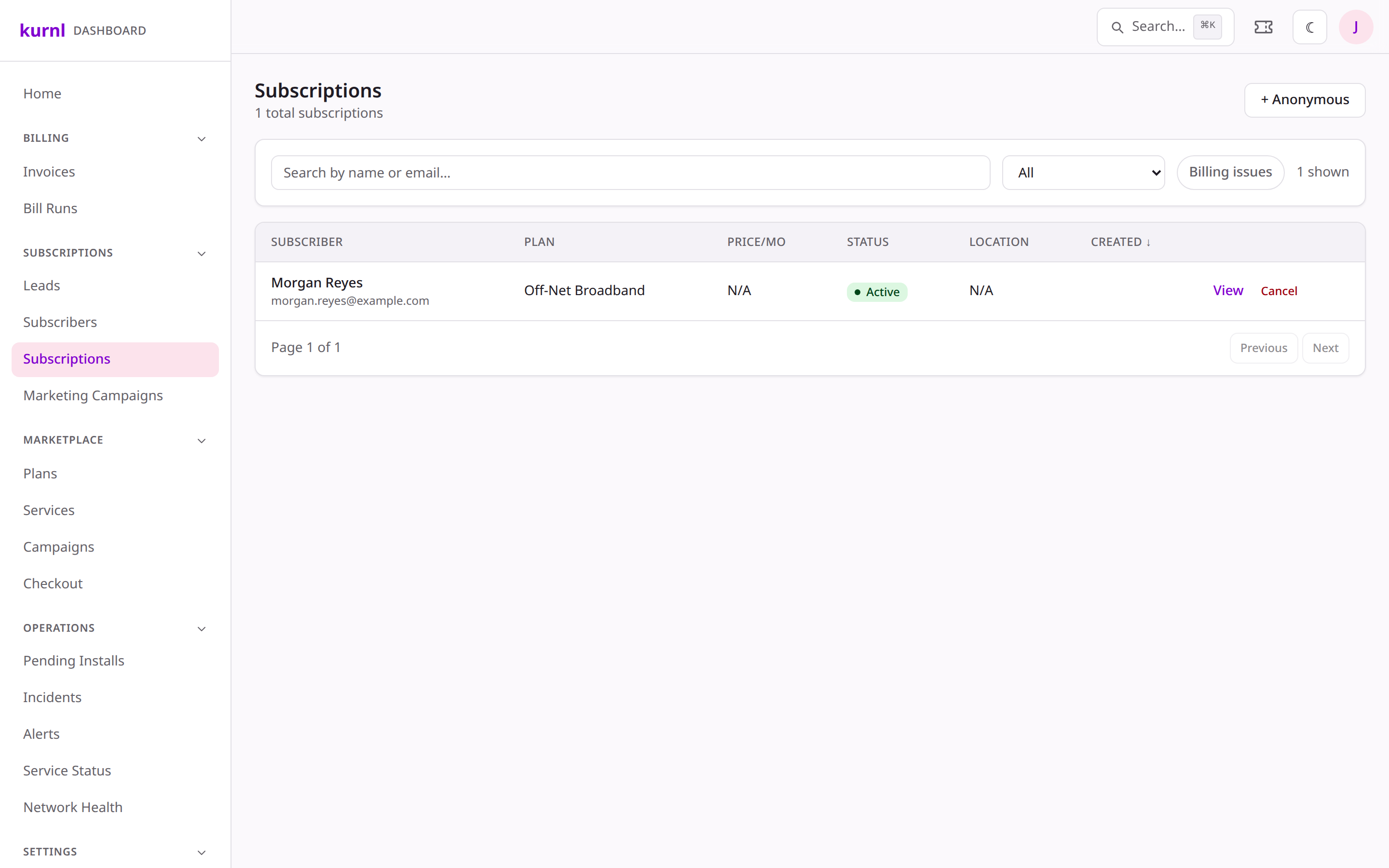
Changing a subscription's plan
A same-provider plan change keeps the line as-is. Switching to a different
provider on the same line is a separate flow — see below.
Suspend pauses billing and service; cancel ends the subscription on a chosen
date (service stays live until then, then the port is reset). Both send the
matching subscriber email.
2
Change provider (same line)
A subscriber can move to another ISP on the same physical line without a truck
roll — the old subscription ends and a new one is created network-neutrally.