How a MikroTik CPE goes from the box to an active line — bench provisioning, the sticker, the technician’s visit with the job sheet, and the automatic binding and activation. Written for the NOC, the bench and the field.
A customer premises device (CPE) is never configured in the unit and nobody ever
types into the router. It is prepared at the bench, labelled, put into
stock, mounted by the technician with the job sheet in hand, and the
platform binds and activates it on its own. This page is the single procedure
behind Devices & inventory and
Installs & field service; the short version lives in the
dashboard under CPE Fleet → Bench guide.
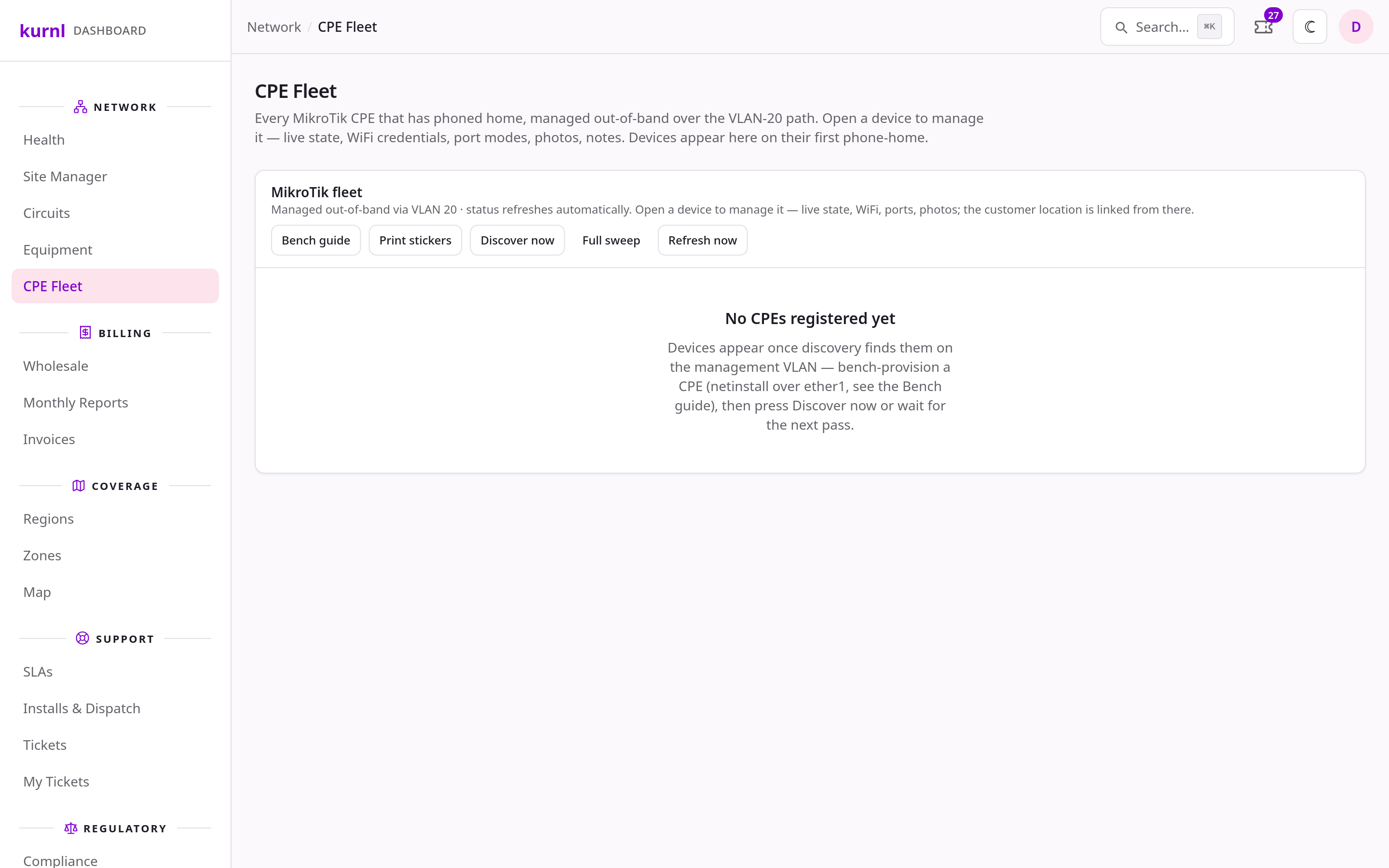
CPE Fleet — Bench guide, Print stickers, Discover now and Full sweep live here; devices appear as rows once discovery has seen them
Decisions this procedure rests on: the device owns its Wi-Fi sticker
(not the unit), the bench password is rotated per device by the platform,
binding happens only on a port the unit register knows, and the operator
view shows the ISP at a port, never the end customer. Details below.
Keeps the netinstall server, its bench reporter and discovery running, prints stickers, creates technician sign-ins, watches the fleet and the Bench view
Bench technician
The NOC’s bench port (exact port: dashboard → CPE Fleet → Bench guide)
Etherboots and netinstalls the device, waits for the Bench card to say Ready to unplug, applies the sticker, puts the device into stock
Field technician
Technician workspace (/field/jobs)
Patches the MER when the job needs it, mounts the CPE with the right optic, documents with photos, stamps the visit
Provider (ISP)
Provider portal
Owns the customer; sees the subscription and the install state, not the device internals
A bench port is defined by its VLANs, not by the switch it sits on. Any managed
switch works as long as the port:
carries the captive VLAN untagged and the CPE management VLAN tagged —
exactly the profile every subscriber port has in the golden configuration;
sits in the same layer-2 domain as the netinstall server and the platform’s
management path;
is not mapped to a unit in the unit register. That is what keeps a bench
device in stock: binding only happens on register ports, and it is also why
a bench port must never become a unit port later without clearing it first;
is copper at the device end — Etherboot only runs over the CPE’s ether1.
From an SFP switch port that means a copper SFP (1000BASE-T) or a short
DAC/fibre into a small copper switch.
Site
Bench port
Notes
NOC (Harbour Road today)
The designated rear access port on the MER switch
Copper SFP in that port, ordinary patch cable to the CPE’s ether1. One device at a time — port security counts two MACs per port, so wait for the green Bench card before the next device. If a copper SFP proves flaky, a small managed copper switch on a DAC with the same VLAN profile does the job.
Field office
A Kurnl-configured bench switch, any access port with the profile above
Only once it runs the Kurnl golden configuration and is trunked into the NOC’s captive and management VLANs — otherwise there is no netinstall server and no discovery behind the port.
NOC after the Cologix move
No Waystream needed: a copper SFP in an SFP28 port runs at 1G, or a small copper bench switch on a DAC
The netinstall host has to sit in the captive VLAN at the NOC. Same two rules: captive untagged + management tagged, port not in any unit register.
The exact port, optic and fallback per site are NOC-internal and live in the
dashboard under CPE Fleet → Bench guide → Where to bench, behind the
operator login. Customer ports on the same switch are off limits.
A port on the building switch can be marked as a bench port on its port page (planning 142). The platform
never binds a device it sees there — a device on a bench port goes back to stock with the identity
CPE-<serial>, whatever unit the register maps to that port. Use this when you bench on the building switch
itself instead of a separate bench switch.
Why the bench: RouterBOOT loads a fresh system only over ether1 copper
(Etherboot). Unit ports are SFP, so a device cannot be reset and reloaded
inside the unit. One device takes three to five minutes at the bench.
1
Check the bench
The bench port is a copper port on the captive VLAN (captive VLAN untagged,
CPE management VLAN tagged). The netinstall server must be up — if in
doubt ask the NOC first; a device that Etherboots with no server answering
just sits there. Have Network → CPE Fleet → Bench open: that is where
you follow the device step by step. The seven bench steps are also in the
dashboard under Bench guide, written for the person at the bench.
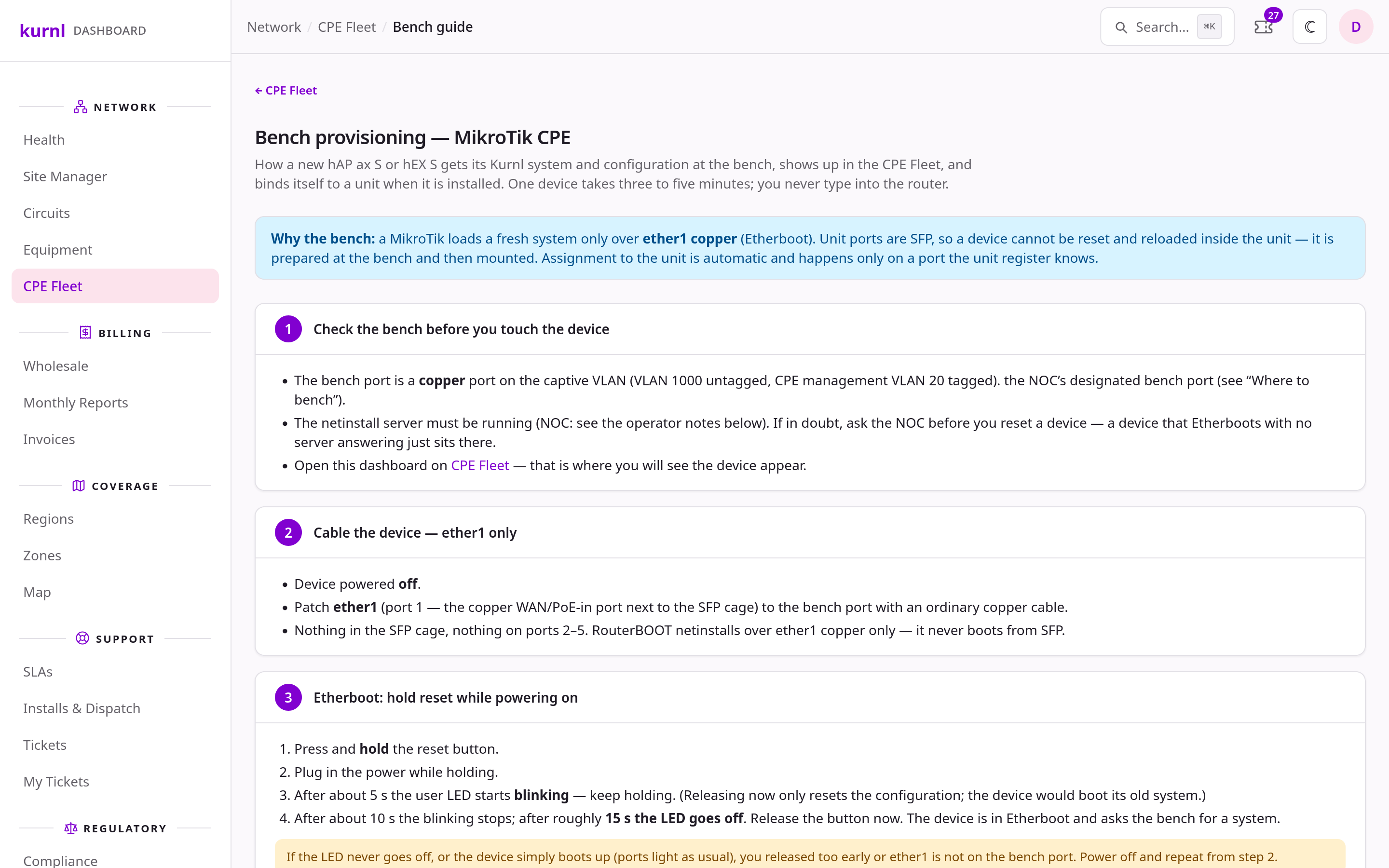
Bench guide in the dashboard
2
Cable ether1 only
Device powered off. Patch ether1 (the copper WAN/PoE-in port next to
the SFP cage) to the bench port. Nothing in the SFP cage, nothing on ports
2–5.
3
Etherboot: hold reset while powering on
Connect the device’s ether1 (copper) port to the bench port — Etherboot
only works over ether1, never over the SFP port. Hold the reset button,
plug in power while holding. After ~5 s the user
LED starts blinking — keep holding (releasing now only resets the
configuration). After ~15 s the LED goes off — release. The device is
in Etherboot. If the LED never goes off or the device simply boots, power
off and repeat.
4
Netinstall runs by itself
The server formats the device, writes the current long-term release
target (see Firmware & advisories; plus the Wi-Fi
package on a hAP ax S) and bakes in the Kurnl golden configuration
(management VLAN, bench password, captive bridge, SNMP identity). One to
two minutes; the device reboots on its own. Do not unplug — an interrupted
run leaves the device without a system, repeat from the previous step.
5
Wait until the Bench view says Ready to unplug
CPE Fleet → Bench shows one card per device the bench has seen, with
the steps Etherboot → Flashed → Booted → Registered → Password set →
Wi-Fi pair, the time each one took and a running stopwatch. The netinstall
server reports the first two steps as they happen; discovery on the
management VLAN does the rest within two minutes, or immediately with
Discover now: it logs in with the bench password, reads model, serial,
MAC and firmware, sets a per-device admin password, issues the sticker
pair and registers the row (identity CPE-<serial>, status stock,
location Unassigned). The card turns green with Ready to unplug —
that is the go signal, about three minutes after the Etherboot. A step that
runs late turns the card amber and says what to check (ether1 not on the
bench port, device not back after the flash, bench port not on the
management VLAN, netinstall refusing a device it already installed).
Check model and serial against the label.
6
Sticker, then power off
Print sticker on the green card prints this device’s label; CPE
Fleet → Print stickers lists every device not yet bound to a unit.
Print this device’s label (Wi-Fi name, password, QR and port legend for a
hAP ax S; port legend only for a hEX S) and stick it on top of the housing.
Power off, unplug ether1. The device is now stock: provisioned,
registered, labelled, waiting for a unit. It keeps its configuration and
its sticker pair across installs and factory resets.
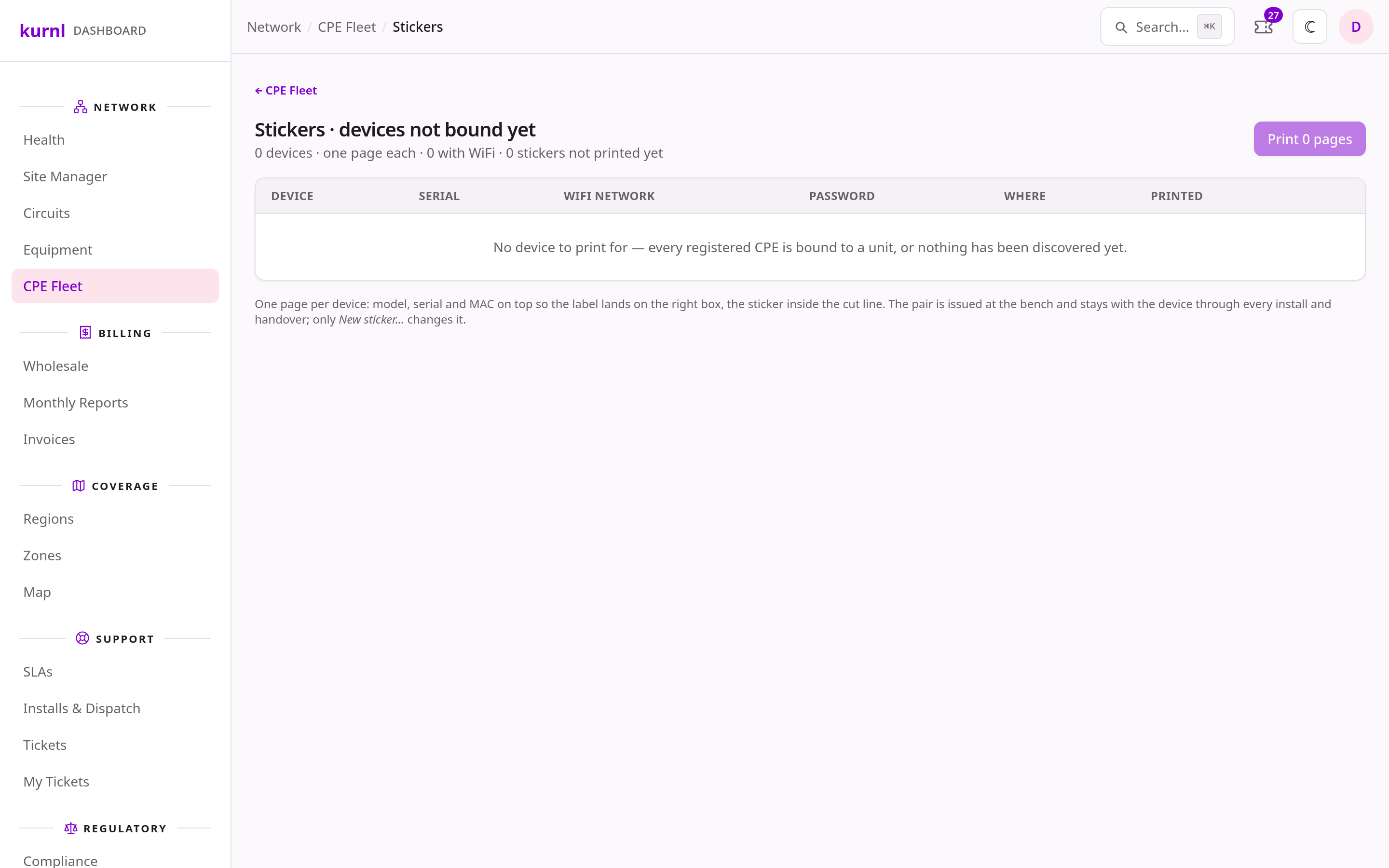
Print stickers — every device not yet bound to a unit
What
Takes
Hold reset until the LED goes off
~15 s
Netinstall (format, system, config, reboot)
1–2 min
Device back and phoning home after the flash
~1.5 min
Bench card green (registered, password, sticker pair)
≤ 2 min after that, or Discover now
Status stock → online
≤ 2 min after registration
Auto-bind after mounting in the unit
≤ 2 min
One device end to end (measured: 3 min)
3–5 min
Etherboot does not work over a tunnel (TFTP does not survive the path). A
remote building either gets devices pre-provisioned at the Victoria
bench or a local netinstall host. This is the open item for every building
reached over a carrier link rather than the NOC’s own fibre — Estoya once
its CCI connection is in place. (The HSIA line there was a test; it may
serve one unit later, it is not the building’s uplink.)
A pending install becomes a dispatch on Installs & Dispatch. The
dispatch carries the visit’s scope, derived from the building’s line type
and the unit’s patch state and overridable per card:
Scope
Meaning
MER + unit
Third-line building, unit not yet patched: patch in the MER, then mount the CPE
Unit only
The MER is already patched (first-line rollout or an earlier visit)
MER only
Patch job without a device (for example a re-splice)
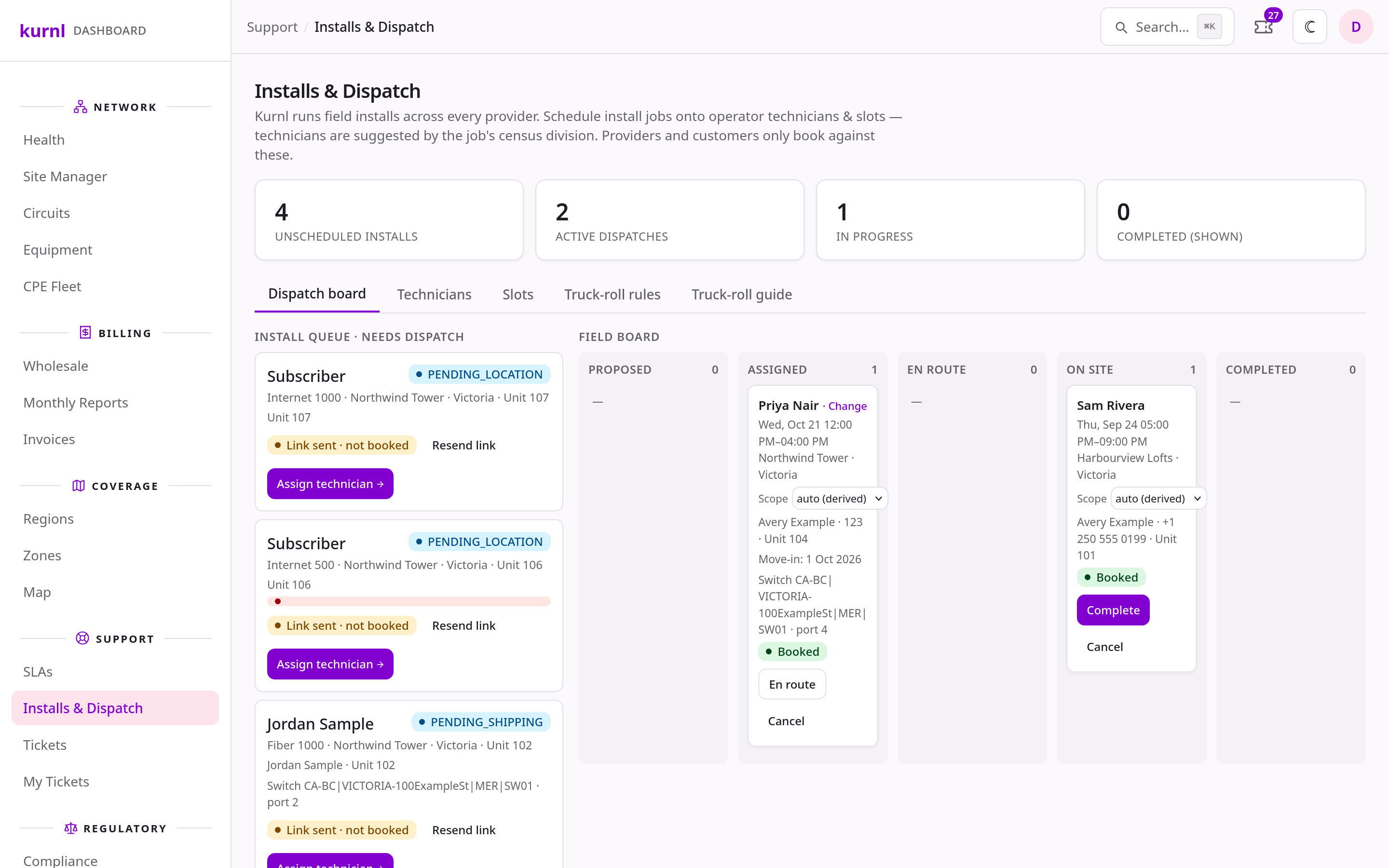
Installs & Dispatch — the dispatch board with the per-job scope
The job sheet lists what to bring: the switch-end optic (BX-D, FS
SFP-1G43-BX10) for the panel/switch port, the CPE-end optic (BX-U, FS
SFP-1G34-BX10) for the device’s SFP cage, a patch cord, and a stock CPE of
the building’s planned model (set planned_cpe_model on the building, the
kit is derived from it). We use BiDi optics: the two ends are different parts,
one of each per line.
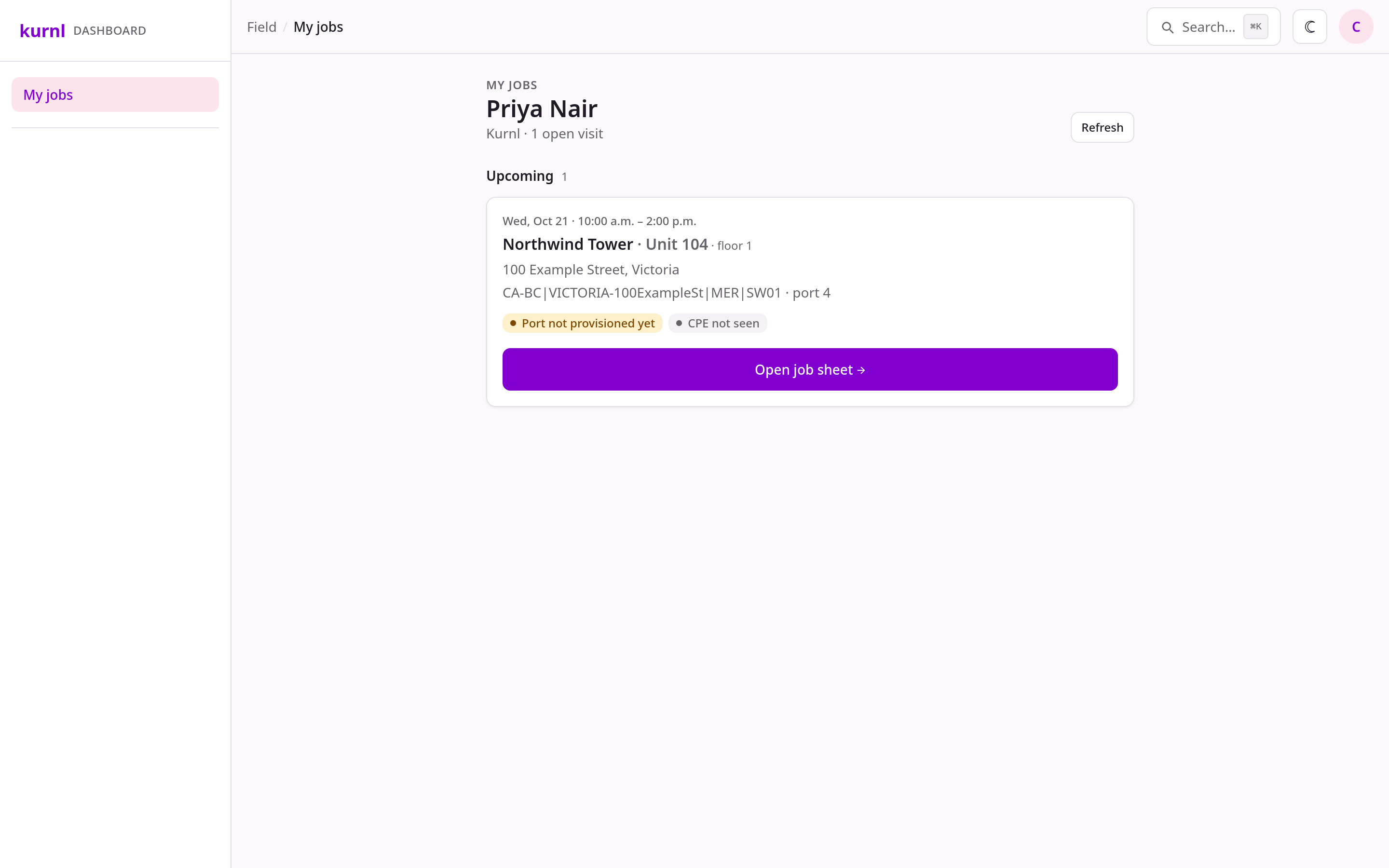
Technicians sign in to the operator portal with the technician role and
land on My jobs (/field/jobs); every other page redirects them back.
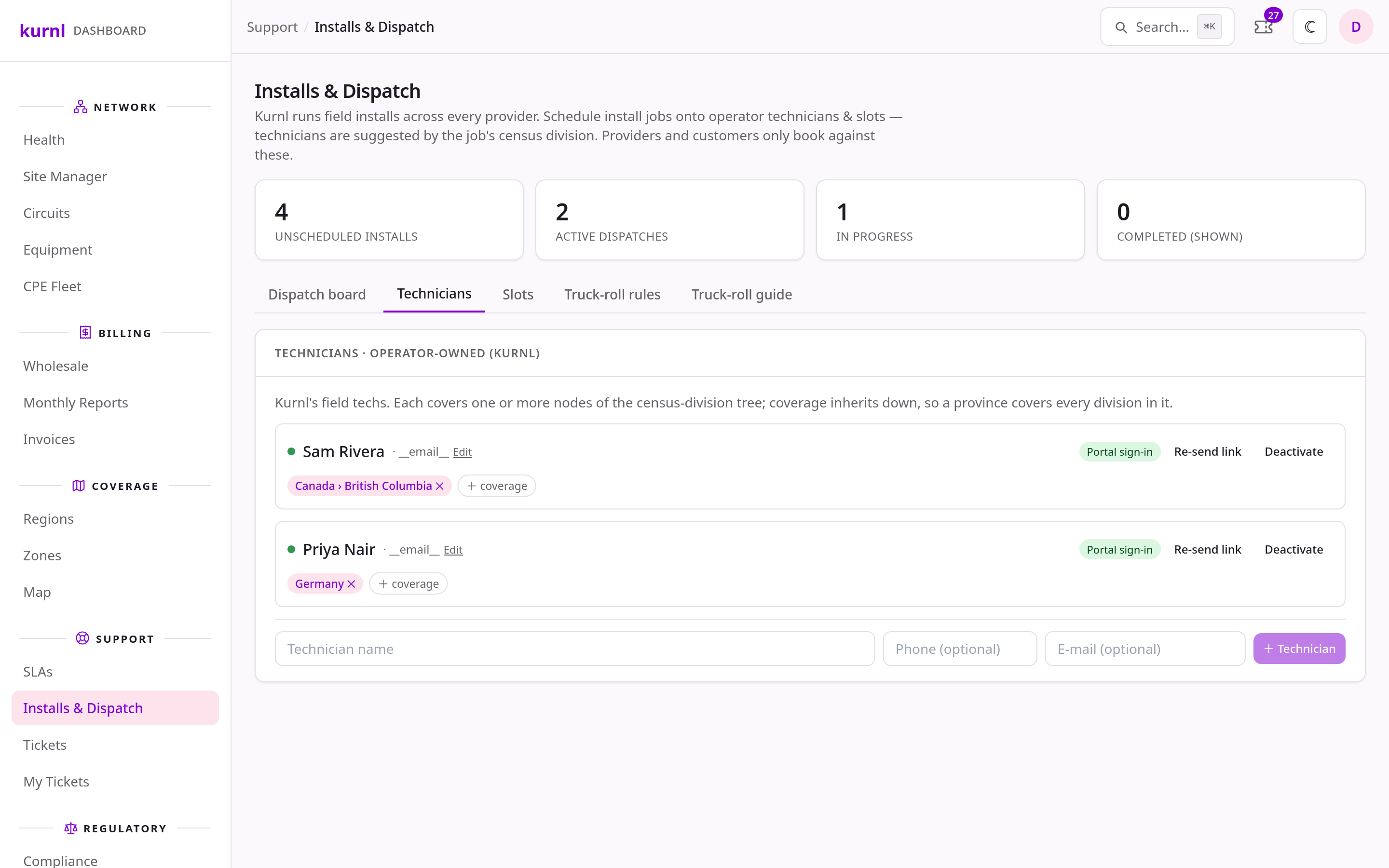
The operator creates the sign-in once: Installs & Dispatch → Technicians →
Set up sign-in sends a mail that lets the technician choose a password. No
MFA is required for this role.
My jobs — what the technician sees after signing in
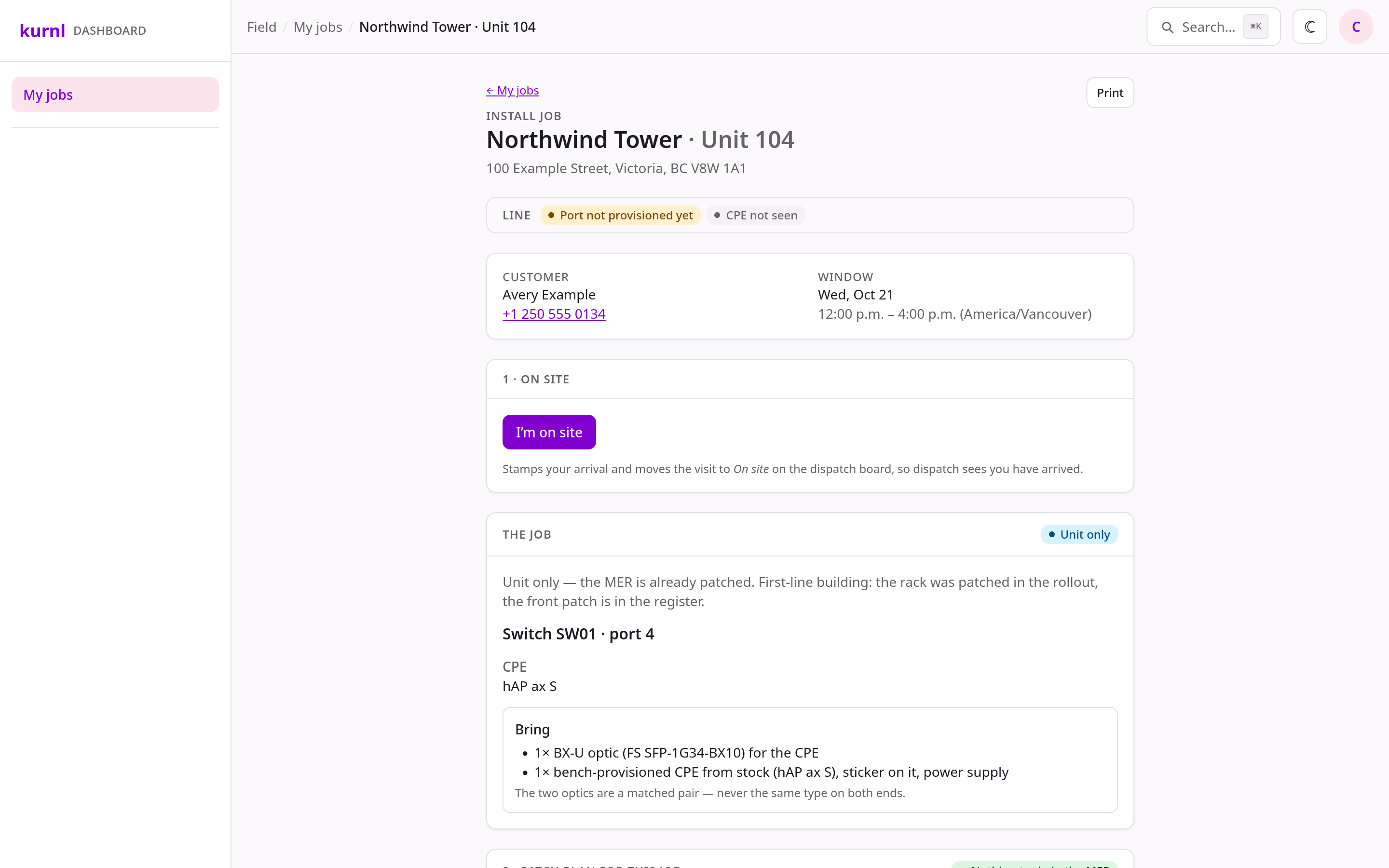
Each job opens a job sheet with five numbered steps, made for the phone
(a paper copy prints on one page for a MER without reception). The
technician’s own walkthrough per kind of visit is the
Field technician guide; the steps in short:
A job sheet — line status strip, customer contact, window, then the numbered steps
1
1 · On site
Stamp the arrival. It tells the NOC and the provider that the visit has
started; the sheet’s status strip stays visible in every step.
2
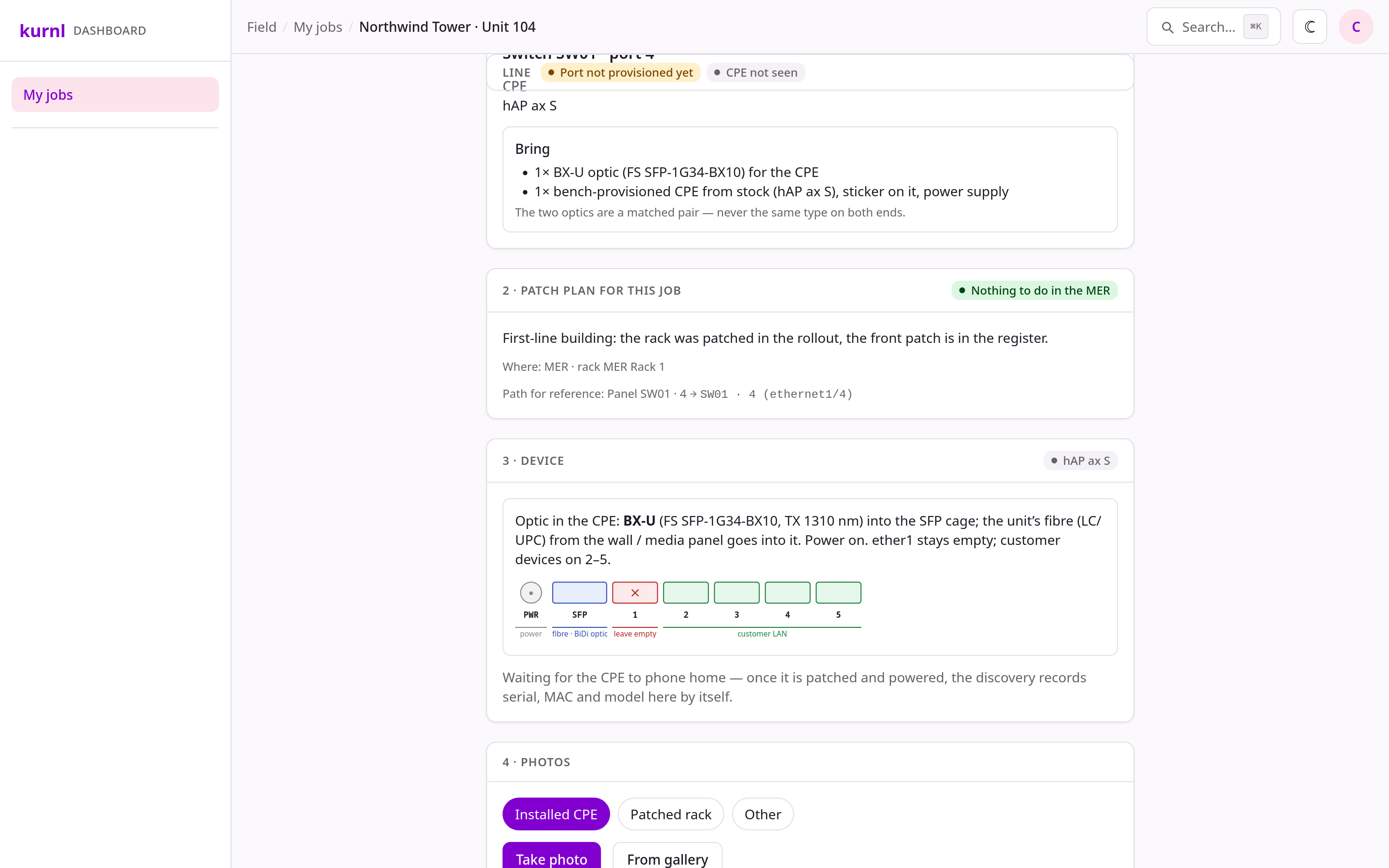
2 · Patch plan (MER)
Shown when the scope includes the MER: room, rack and access notes, the
NetBox cable path (switch port → panel port), a rack view. Front panel
port = the work, rear port = documentation. Put the BX-D optic into the
named switch port, patch the front port, press Patched — the platform
writes the cabling into the register (a 409 means another unit already
holds that switch port; stop and call the NOC).
3
3 · Device (unit)
Mount the stock CPE: BX-U optic into the SFP cage, the fibre from the wall
into it, power on, ether1 stays empty in a fibre/DAC building (copper
buildings use ether1 as the uplink), customer devices on ports 2–5. The
device card is read-only and fills itself once discovery has seen the
device — “waiting for the CPE to phone home” is normal for up to two
minutes.
Steps 2–4 on the sheet: patch plan (here: nothing to do in the MER), device with the optic and the port strip, photos
4
4 · Photos
Take the photos in the app: the mounted device with its sticker, the
patched panel, anything unusual. Photos are bound to the CPE, not just to
the job, and show up on the device page afterwards.
5
5 · Work done
Stamp it. This is documentation only — the line does not activate from
the stamp, it activates from the device’s first contact (next phase). If the
device did not bind before you leave, say so in the notes.
The technician’s sheet shows the on-site contact’s name and phone because
someone has to ring the bell. The operator’s own views never show the end
customer — they show the ISP that owns the line.
Within the next discovery pass (≤ 2 min) the switch reports the device’s MAC on
the unit’s port. The MAC search waits for every switch and places a device only
at a port that the unit register maps to a unit; uplinks and trunks never
count. The platform then:
binds the device to the unit — location Building · Unit, identity
renamed to the canonical …|UNIT-xx|CPE, status stays online;
moves the unit’s port from the captive VLAN to the provider’s
VLAN once the subscription is there, so the resident leaves the captive
portal and gets the ISP’s service;
records the install as completed for the subscription and fires the
install.completed event — wire follow-ups in
Automations.
Nothing to assign by hand. A device seen anywhere else (a trunk, the bench)
stays stock — that is deliberate.
Credentials, identities and labels — the decisions
Bench password: baked in by netinstall, known only to the server and the
middleware, rotated to a per-device password on first discovery. No
technician ever needs or sees a router password; the operator portal is the
only way in. A handover reset (the 5-second reset in the unit) restores
the golden configuration and the device’s sticker pair and keeps the
per-device admin password.
Identity:CPE-<serial> at the bench, the canonical
REGION|SITE|ROOM|UNIT-xx|CPE after binding. The technician does not name
anything.
Sticker (Wi-Fi name + password + QR + port legend): belongs to the
device, issued at the bench, printed from CPE Fleet before the device
leaves the bench. It follows the device into the next unit after a move-out;
a unit never has a sticker of its own. “New sticker…” on a device rotates the
pair and reprints.
Device label from the factory: stays; the serial on it is what the bench
technician checks against the Bench card (and the fleet row).
Reset released too early (5 s = config reset only) or ether1 not on the bench port. Power off, repeat, hold ≥ 15 s.
Etherboots (LED off) but nothing happens for minutes
No netinstall server answering — wrong port (must be the bench port) or the server is down. NOC checks the service and its log.
Bench card stays on Flashed and turns amber
The device has not come back on the management VLAN. Wait for the ether1 link, then Discover now. Still nothing after another pass: the device got no management address (bench port tagging) — NOC.
Bench card says netinstall ignored the device
The bench server installs each device once per service start. NOC restarts the netinstall service, then Etherboot again.
No Bench card at all after the Etherboot
The bench server is not reporting (its reporter service is down or the bench port is not the server’s port). The device still registers through discovery; the card appears from Booted on. NOC checks the reporter.
Card was amber, then green, but the device goes offline right away
Management path lost — cable moved before the card was green, or power-cycled before the password rotation finished. Leave it two minutes, Discover now.
hAP ax S frozen after first boot (power LED only)
Known first-radio-activation freeze. Power-cycle once; the configuration is intact.
Bound and online, but the resident gets no captive portal / internet
The switch port still holds the secure MAC of the previous CPE (port security counts per MAC and VLAN). NOC: re-run the captive reset for the port — clearing the MAC table alone is not enough.
Device bound to the wrong unit
The unit register maps that port to that unit — fix the register (Site Manager › Units, port/patch), then Discover now re-binds. Do not edit the CPE row by hand.
Re-provisioning a device already in the list
Netinstall again at the bench is fine; it re-registers under its MAC. An old row for the same device can be deleted.
Technician cannot open My jobs
No sign-in yet — the operator sends Set up sign-in from the Technicians tab; the mail leads to reset password.
Device lost — password unknown, resident reset it, “nothing works”: the golden configuration is the
device’s default configuration. Power it off, hold the reset button, power on while holding, release as
soon as the LED starts blinking (about 5 seconds). The device rebuilds its configuration, phones home and
the platform registers it again within a few minutes — identity and sticker network stay, a resident’s
own Wi-Fi is re-applied. The button does nothing while the device is running; holding it longer than
about 10 seconds selects other boot modes, so release at the first blink.
Discovery: lease probe on the management VLAN every two minutes, full pool sweep once a day; Discover now
runs one pass, Full sweep the whole pool. While a freshly flashed device is still unregistered the pass sweeps
the pool on its own, so a lease source that lists new clients late does not hold the bench up.
Bench view: the netinstall server runs a reporter that follows the netinstall log and posts each device’s
Etherboot, flash and “already installed” events to the platform; the platform adds boot, registration, password
and sticker-pair steps. The card’s stopwatch and warnings come from those events; the timeline is kept for a week.
Stock per building: keep at least one provisioned device of the building’s planned model in stock before
a truck roll is booked — the dispatch’s kit list assumes it.
Host, service and log names of the netinstall server, the seed script and the bench port per site are
NOC-internal: dashboard → CPE Fleet → Bench guide → Operator notes (operator login).